Getting Started with ICDb: From Signup to Published Comic Portfolio in 15 Minutes

Jan Wünsch
ICDb's co-founder & developer. I like all things nerdy, road biking, cyberpunk and so much more.
Looking to build a comic portfolio online but dreading hours of website setup? The Internet Comic Database (ICDb) gets you from signup to published portfolio in just 15 minutes. Whether you're an indie comic creator showcasing your first webcomic or a veteran artist building your professional presence, this guide walks you through every step — from choosing your plan to going live with your comic portfolio website.
ICDb is built on three pillars: Portfolio (a shareable page showcasing your work), Projects (tools to manage your comic production), and Discovery (a marketplace to find collaborators and promote your work). By the end of this guide you'll have your portfolio live at icdb.app/yourname, ready to share with publishers, collaborators, and fans.
Let's get started.
1. Choosing Your Comic Portfolio Plan
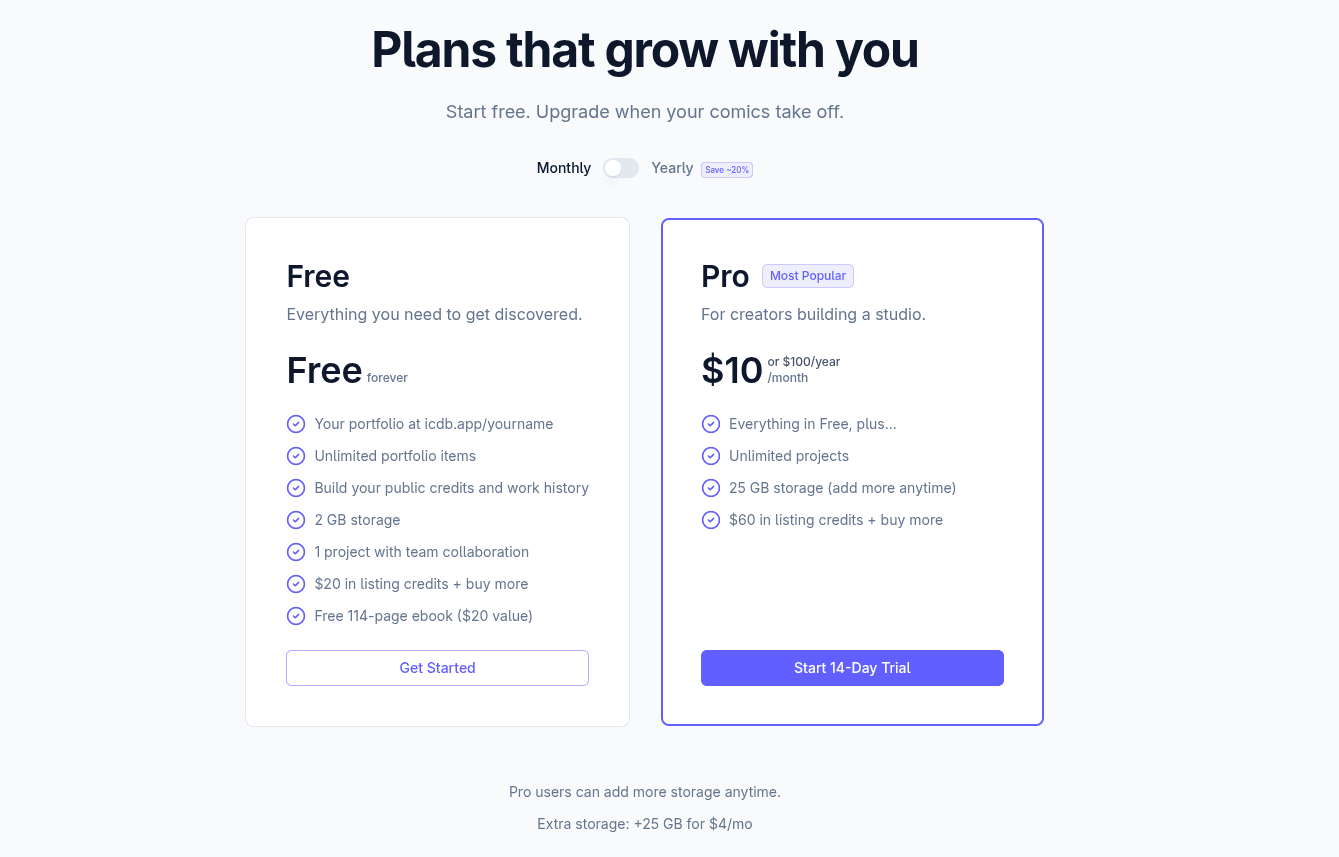
ICDb offers two plans:
Free
- Price: $0 forever
- 1 active project
- 2 GB storage
- 2 Discovery credits to start ($20 worth)
Pro
- $10/month or $100/year
- Unlimited active projects
- 6 Discovery credits to start (worth $60)
- Credit card required after signup (even for 14-day free trial - you can cancel during this time before getting charged)
Our recommendation: start with Free. You get a full portfolio page, one active project, 2 GB of storage, and two Discovery credits — without entering a credit card. That's more than enough to follow this guide and publish a professional comic creator portfolio today. You can always upgrade to Pro later when you need unlimited projects or team collaboration.
Ready? Head to https://icdb.app/auth/signup to get started.
2. Creating Your ICDb Account
The signup form asks for four things:
- Email — Used for login and notifications.
- Username — This becomes your permanent portfolio URL (`icdb.app/yourname`). Choose carefully: it can't be changed later. Stick to 2-30 characters, letters, numbers, hyphens, or underscores. ICDb checks availability in real-time as you type.
- Password — Minimum 8 characters.
- Confirm Password — Must match.
Select Free or Pro at the top (Pro shows a Monthly / Yearly toggle), then hit Sign Up.
Tip: Your username is your brand. If you go by "InkSlinger" online, grab icdb.app/inkslinger before someone else does.
Verify Your Email
After signing up, ICDb sends a verification email. Click the link in your inbox to activate your account. Check your spam folder if it doesn't arrive within a minute.
Once verified, you'll land on your dashboard.
3. Navigating Your Creator Dashboard
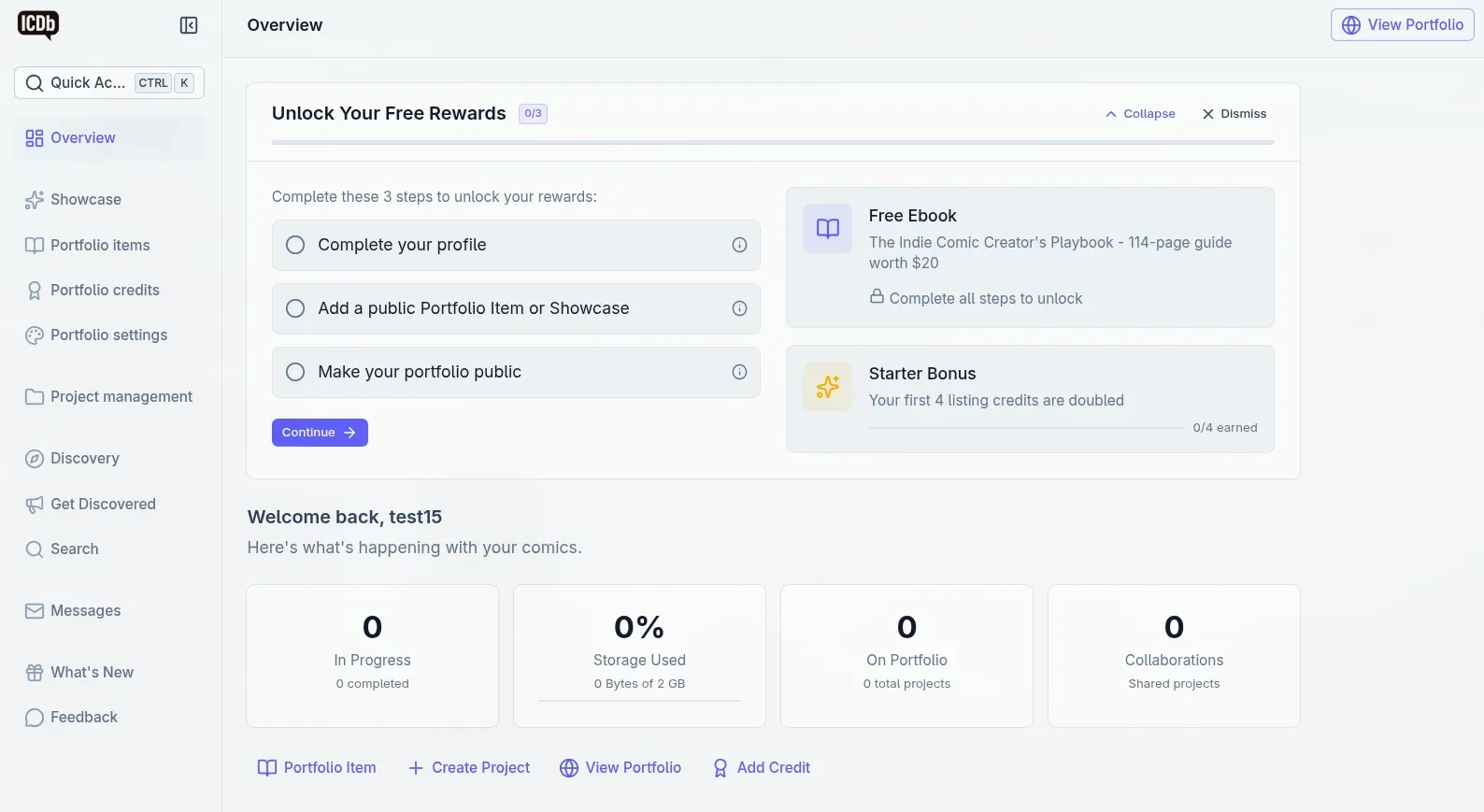
Your dashboard is home base. Here's what you'll see as a new user:
Stat Cards across the top show you four things at a glance:
- In Progress — Active projects (and how many are completed).
- Storage Used — A progress bar showing how much of your storage quota you've used.
- On Portfolio — How many of your works are published on your public portfolio.
- Pending Invitations — Collaboration invitations waiting for your response (or collaborator activity if you've already accepted some).
Quick Actions let you jump straight to the most common tasks:
- Create a Portfolio Item
- Create a Project
- View your Portfolio
- Add a Credit (work history entry)
Onboarding Checklist — the card titled "Unlock Your Free Rewards" with a 0/3 progress indicator. This is your roadmap for the next few minutes. Complete all three steps and you'll earn a free ebook. We'll walk through each step below.
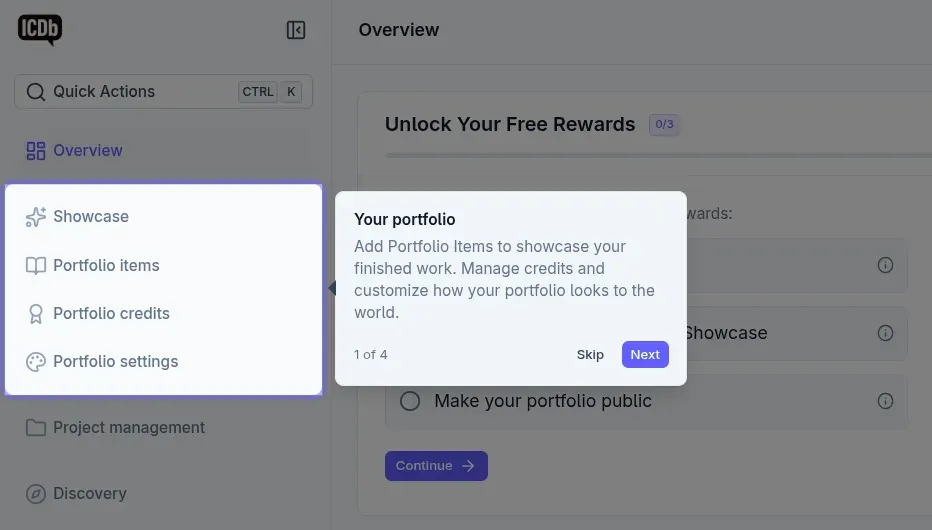
You may also notice a guided tour — tooltip popups that walk you through the interface. Follow them or dismiss them; either way, this guide has you covered.
4. Setting Up Your Comic Creator Profile
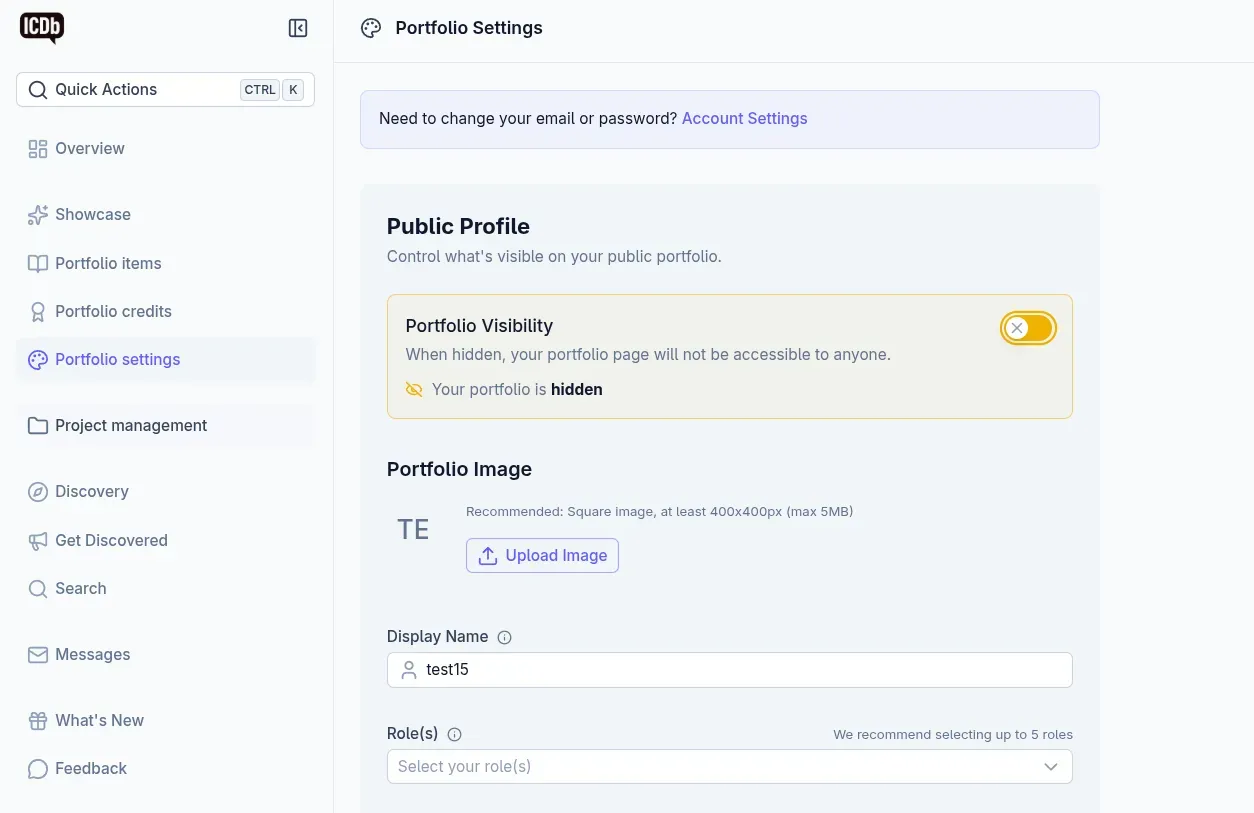
Navigate to Portfolio Settings to flesh out your profile. This is what visitors see on your public comic portfolio, so take a minute to make it shine.
Profile Image — Upload a photo, logo, or avatar (up to 5 MB, square recommended). This appears on your portfolio page and next to your name across the platform.
Display Name — Your public-facing name (up to 50 characters). Unlike your username, this can be changed anytime. Use your pen name, studio name, or real name — whatever your audience knows you by.
Roles — Select one or more roles that describe what you do:
- Writer
- Artist
- Colorist
- Letterer
- Editor
- Cover Artist
- Inker
- Creator
- Other (with a custom text field, up to 30 characters)
Your roles appear as badges on your portfolio and help other creators find you.
Bio — Up to 500 characters to introduce yourself. Keep it specific: mention your genre, current project, or what you're looking for. A strong bio turns profile visitors into followers.
Not signed up yet? Create your free account to follow along.
Social Links and Communication
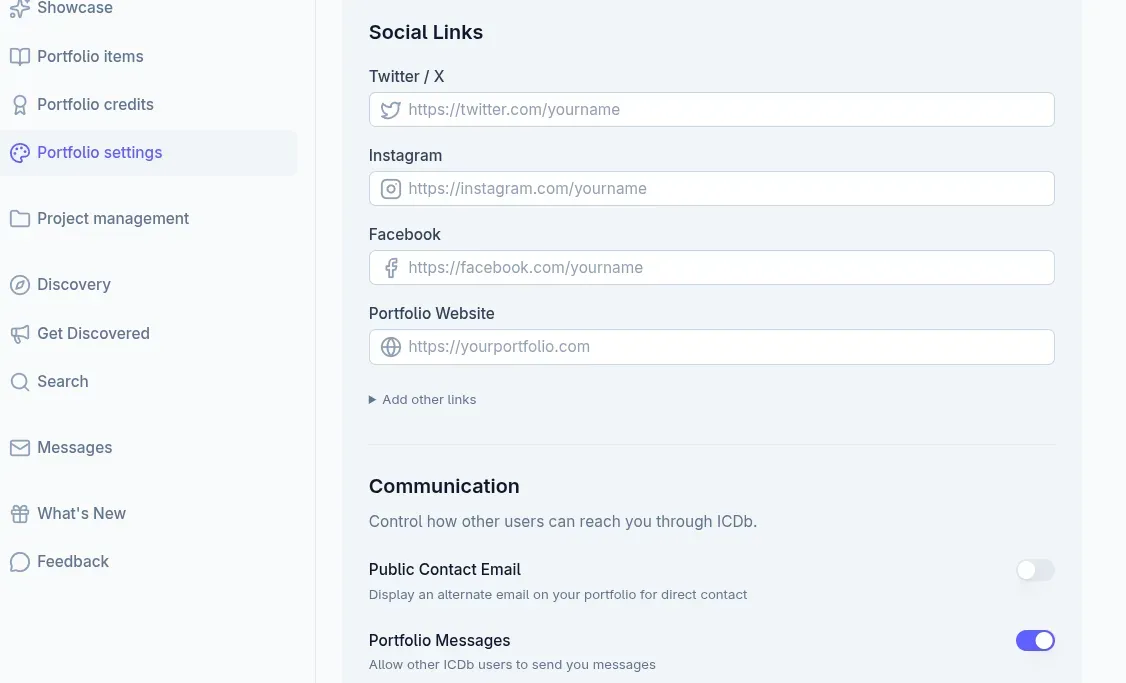
Below your bio, connect your social presence:
- Twitter / X
- Portfolio Website (your own site, if you have one)
- Custom Links — Add any number of labeled links (DeviantArt, Webtoon, Patreon — whatever fits your workflow)
You can also configure communication preferences:
- Public Contact Email — Toggle on and enter an email if you want visitors to reach you directly.
- Portfolio Messages — Allow other ICDb users to message you through the platform.
Availability Badges
Two optional toggles let the world know you're open for business:
- Looking for Work — Signal to publishers and studios that you're available for hire.
- Looking to Hire — Signal to creators that you have roles to fill on a project.
These badges appear prominently on your portfolio page.
Save your changes. Once you've added a display name, at least one role, and a bio, your onboarding checklist ticks off step 1: "Complete your profile."
5. Adding Your First Comic Work to ICDb
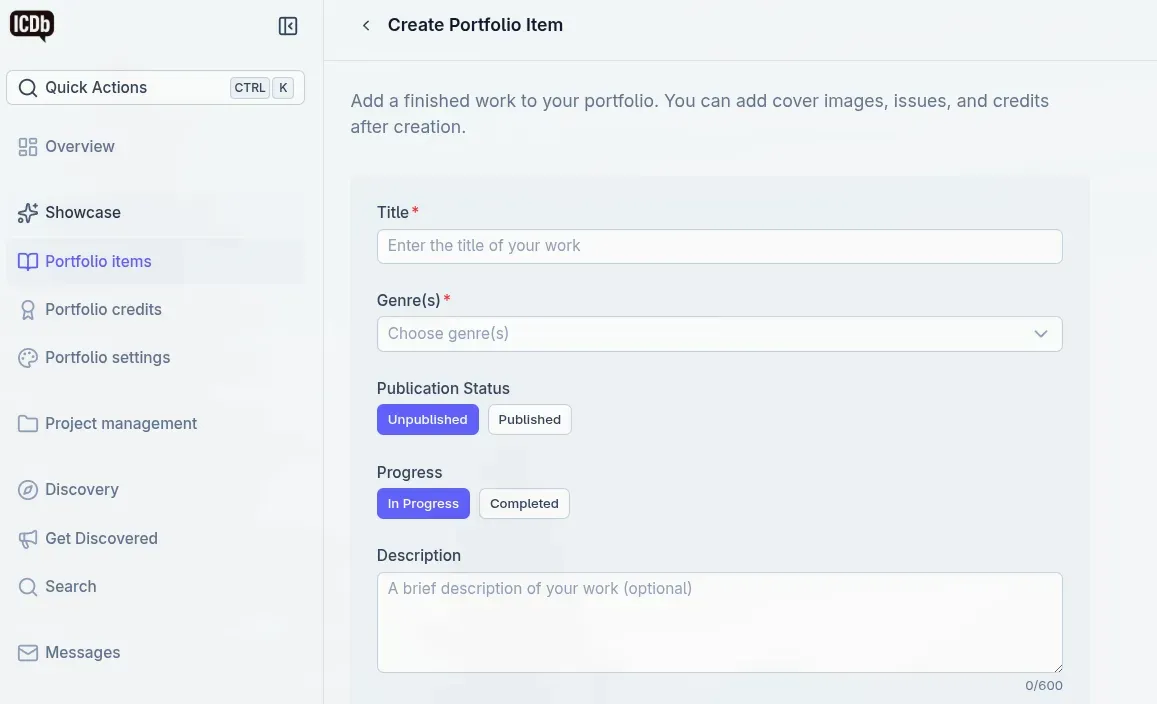
Time to showcase your work. Click Portfolio Item from the Quick Actions on your dashboard (or navigate to your Portfolio Items page and click Create).
A Portfolio Item represents a finished or in-progress comic that you want to display on your portfolio. Fill in the details:
- Name — The title of your comic, graphic novel, or webcomic.
- Genres — Select all that apply (superhero, horror, slice of life, sci-fi, etc.).
- Description — A pitch or summary. What's the story about? Who's it for?
- Publisher — If applicable. Otherwise, toggle **Self-published**.
- Publication Status — Published or Unpublished.
- Progress Status — In Progress or Completed.
- Publication Date — Month and year, if published.
Hit Create and you'll land on the edit page for your new portfolio item.
The Edit Page
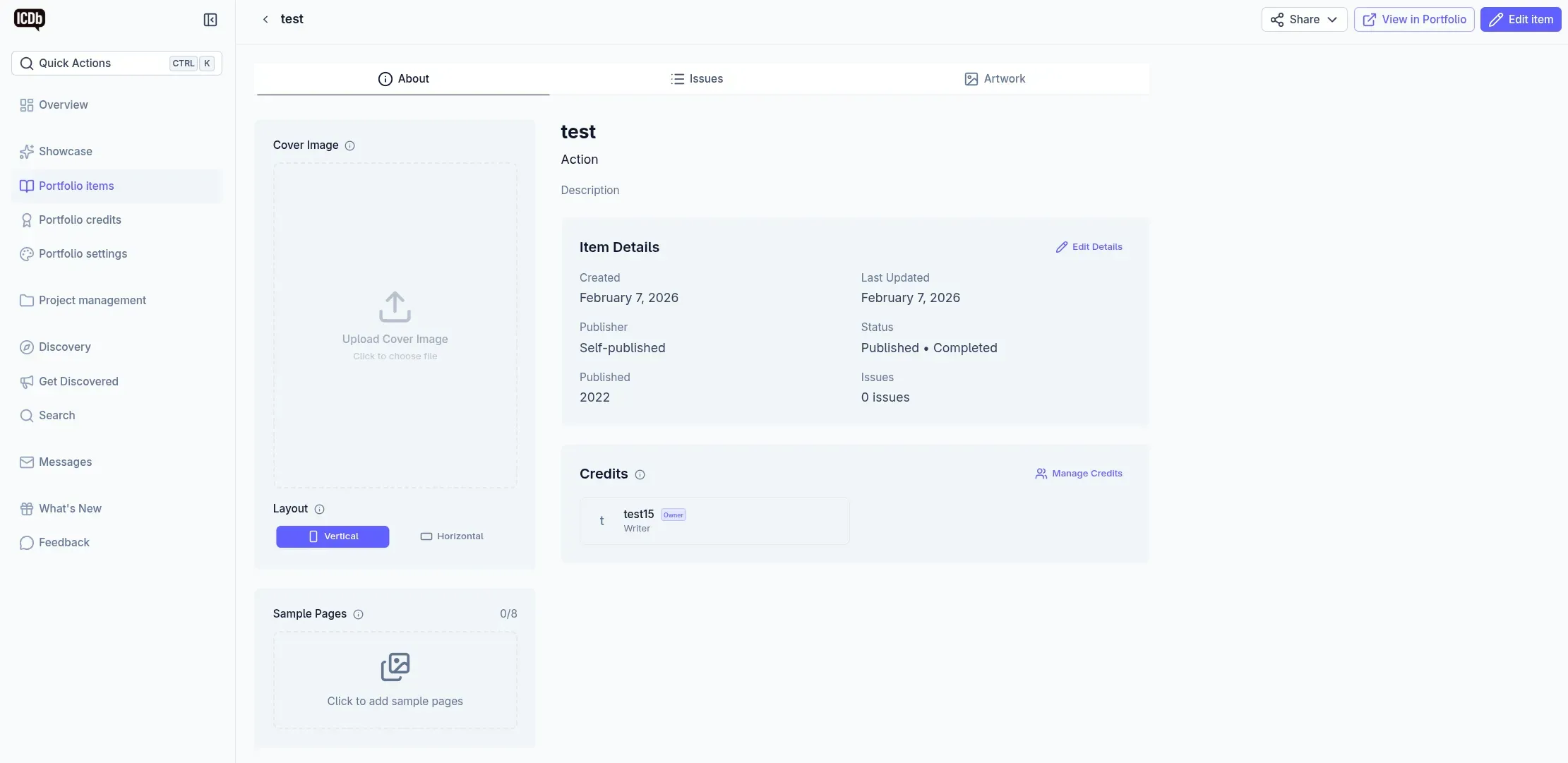
The edit page has four tabs:
- About — The info you just entered, plus additional fields you can refine later.
- Issues — Add individual issues or chapters with titles, numbers, and details.
- Artwork — Upload files organized into sub-categories: Pages, Covers, Character Designs, Layouts, and more. This is where you showcase your best visual work.
- Credits — Tag collaborators who worked on this comic with you. Added collaborators get an invitation and the credit appears on both portfolios.
For now, the basics are enough. You can always come back to upload artwork, add issues, and tag collaborators later.
Once your portfolio item is created (and set to visible), your checklist ticks off step 2: "Add a public Portfolio Item or Showcase."
6. Publishing Your Comic Portfolio Website
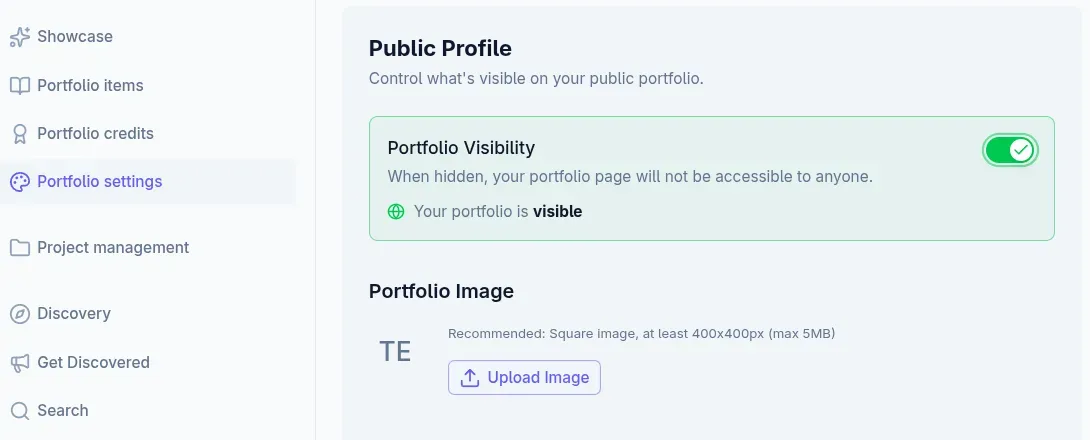
This is the moment. Navigate back to Portfolio Settings and find the Portfolio Visibility toggle at the top of the page.
Flip it to Public.
That's it. Your comic portfolio is now live.
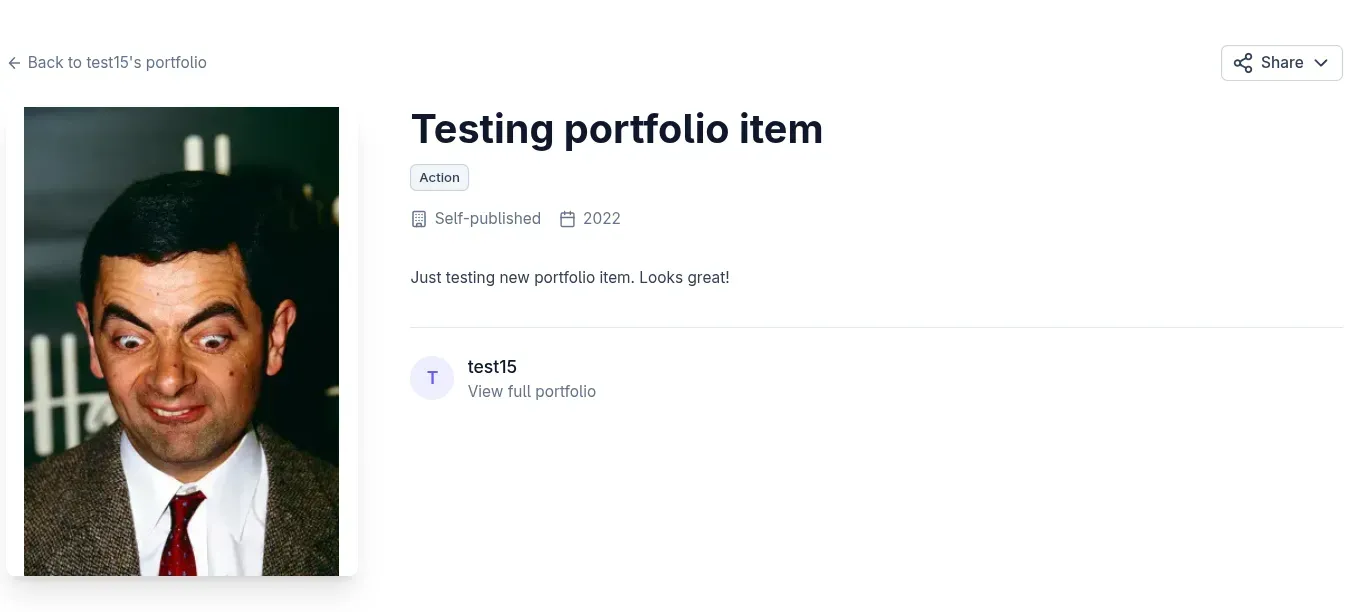
Visit icdb.app/yourname to see what the world sees:
- Hero section — Your profile image, display name, roles, bio, social links, and availability badges.
- Stats — Project count, member since date.
- Comics — Your portfolio items, displayed with cover images and descriptions.
- Credits — Your work history and collaboration credits.
- Message button — If you enabled portfolio messages, visitors can reach you directly.
Share your portfolio URL on social media, add it to your email signature, or send it to publishers. It's your professional comic creator presence, and it's yours.
Your checklist ticks off step 3: "Make your portfolio public." That's 3/3 — time to claim your rewards.
7. Unlocking Your Free Rewards
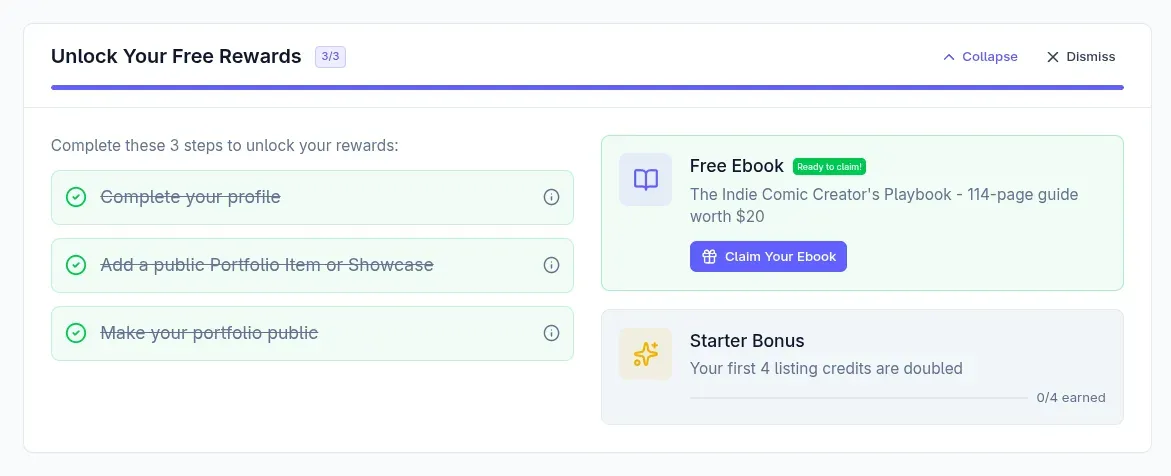
With all three checklist steps complete, you've unlocked two rewards:
The Indie Comic Creator's Playbook (Free Ebook)
A 114-page guide ($20 value) packed with practical advice for indie comic creators. Topics range from production workflows to marketing strategies — the kind of hard-won knowledge that usually takes years to accumulate. Click the claim button on your checklist to download it instantly.
Starter Bonus Credits
Your first 4 Discovery credits are doubled. Every real credit you spend earns you one bonus credit, up to 4 bonus credits total. That means your initial 2 free credits effectively become 4 credits of Discovery visibility — enough to run a listing for four weeks. Spending bonus credits doesn't give you more bonus (unlike spending the starter credit you got with signup). If you purchase 2 more regular credits and spend these, you get another 2 more bonus credits.
Credits power ICDb's Discovery marketplace, where creators post listings to find collaborators, pitch to publishers, or promote live projects like crowdfunding campaigns. Discovery has three listing types:
- Pre-Production — Find collaborators for projects in early stages. Your first Pre-Production listing is completely free (up to 4 weeks), so you can start connecting without spending a single credit.
- Post-Production — Get your completed work in front of publishers and producers.
- Live Project — Promote active crowdfunding campaigns, pre-orders, or launches.
One credit equals one week of listing visibility. Credits never expire, so there's no rush to use them.
8. Next Steps for Your Comic Portfolio
You just went from zero to published portfolio in under 15 minutes. Here's a quick recap of what you accomplished:
- Created your Internet Comic Database account
- Set up your comic creator profile with roles, bio, and social links
- Added your first portfolio item
- Published your portfolio at `icdb.app/yourname`
- Earned a free ebook and starter bonus credits
What to do next:
- Add more work. Upload artwork to your portfolio items, add individual issues or chapters, and create additional portfolio items to showcase your full body of work.
- Start a Project. Use ICDb's project management tools to organize your next comic from start to finish — track issues, manage files across tabs (Artwork, Videos, Documents), and collaborate with your team.
- Add Credits. Build your work history by adding credits for past projects, published or unpublished.
- Explore Discovery. Browse the Discovery marketplace to find collaborators, or post your own listing to get your work in front of publishers and fellow creators.
- Go Pro. When you're ready for unlimited projects, 25 GB storage, and team collaboration, upgrade to Pro.
Your comic portfolio is more than a showcase — it's your professional presence in the industry. The Internet Comic Database gives you the tools to organize your work, manage active projects, and present your best pages to publishers, collaborators, and fans.
Create Your Free Account | Explore Discovery
No credit card required — just your creative vision.
Frequently Asked Questions
How long does it take to set up a comic portfolio on ICDb?
Most creators publish their first portfolio in 15 minutes or less, from signup to going live.
Is the Internet Comic Database free for indie comic creators?
Yes. The Free plan includes 2 GB storage, 1 active project, and a professional portfolio at icdb.app/yourname — forever. No credit card required.
Can I use ICDb to manage multiple comic projects?
Yes. The Pro plan ($10/month or $100/year) includes unlimited active projects, 25 GB storage, and collaboration tools for team-based work.
Do I need coding skills to build my portfolio?
No. ICDb generates your portfolio automatically from the work you upload — no design or coding required.
Can publishers find my work on ICDb?
Yes. The Discovery marketplace connects creators with publishers, editors, and collaborators actively looking for new talent.
Can I change my username after signing up?
No. Your username is permanent and becomes your portfolio URL (icdb.app/yourname). Your display name, however, can be changed anytime in Portfolio Settings.
Share this post